一人のVC業務をAIエージェントに任せる:自作デスクトップアプリ Work OS の目的・機能・使い方
メールや会議のTODOから仕事を作ってAIエージェントに任せ、別のモデルが検査した成果物だけを受け取る。自作アプリ Work OS の目的、エージェントとSkillsの仕組み、動画での使い方、実測した導入効果をまとめる。
17th Oct 2026
メールや会議のTODOから仕事を作ってAIエージェントに任せ、別のモデルが検査した成果物だけを受け取る。自作アプリ Work OS の目的、エージェントとSkillsの仕組み、動画での使い方、実測した導入効果をまとめる。
一人のVC業務をAIエージェントに任せる:自作デスクトップアプリ Work OS の目的・機能・使い方
バージョン注記: 2026年10月17日時点の Work OS 0.14.7(リリース候補、Windows専用)を使っている。自分の仕事のために作ったアプリで、一般向けの配布はしていない。エージェントの実行には Claude Code、Codex、Antigravity の各CLI(同日時点)を使う。同じ名前の他社サービスとは関係がない。本文の動画と計測値は、架空のデモデータで撮影・計測したものだ。
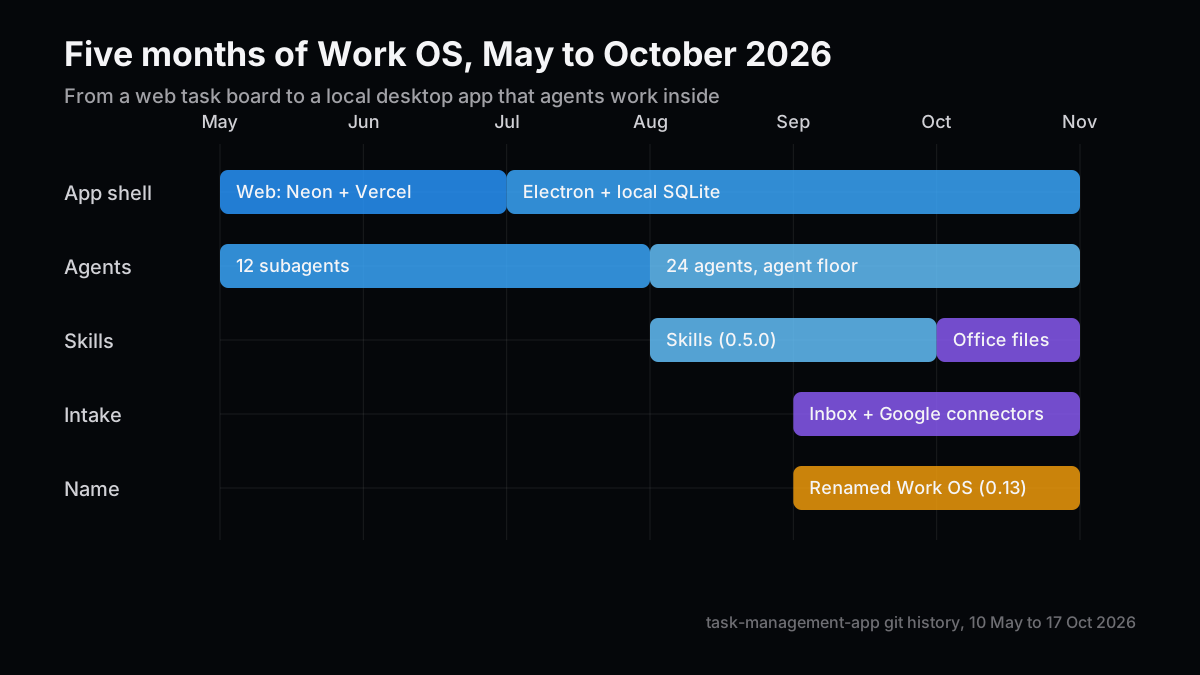
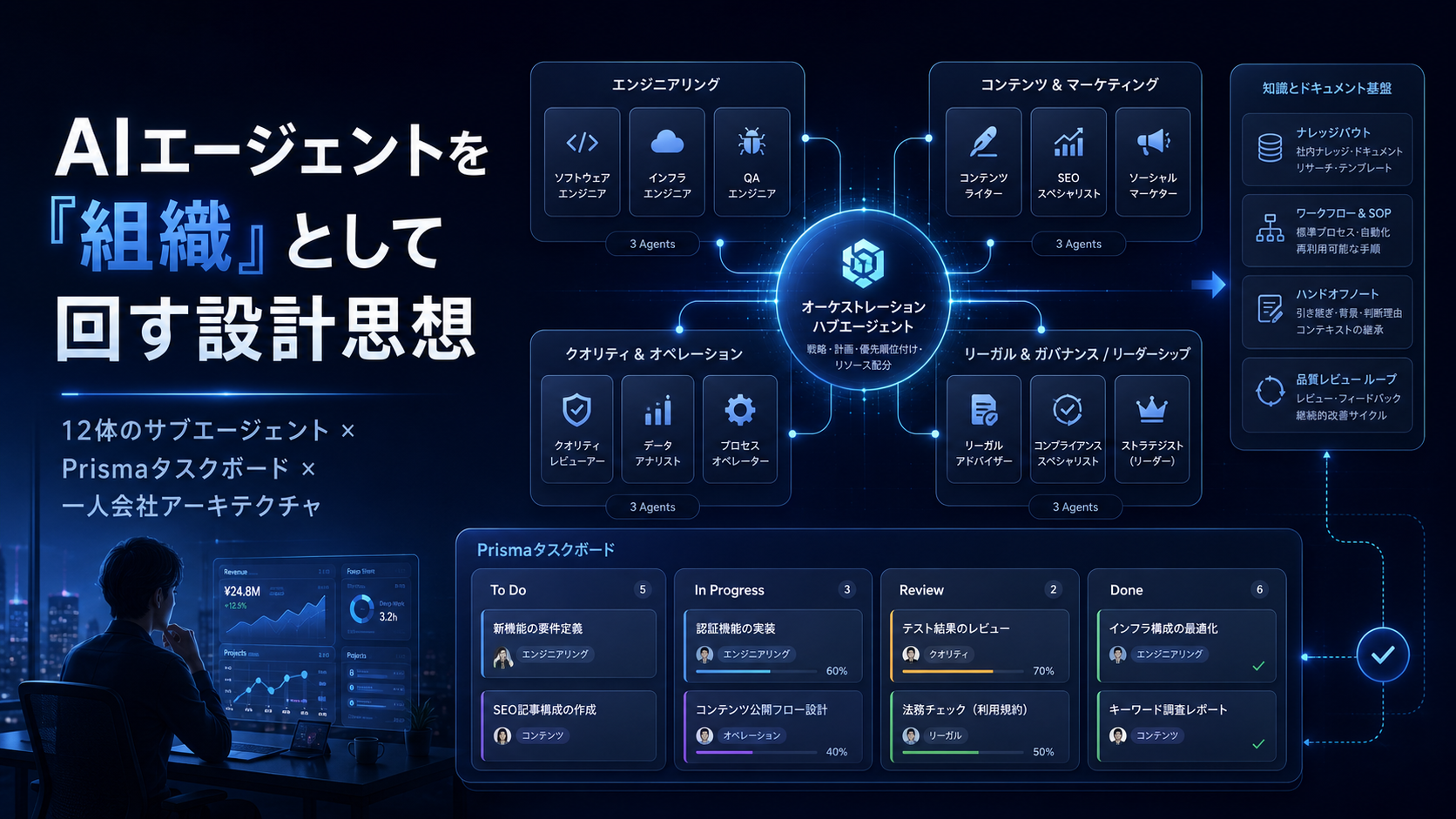
5月に書いた一人会社のAIエージェント組織の記事では、12体のサブエージェントを「組織」として回す設計を紹介した。そこで一番強調した教訓は「AIの組織は静かに壊れる」だった。あれから5か月、その仕組みを自分の毎日の仕事の道具として作り直した。それが Work OS だ。
設計で一番こだわったのは、作る人と確かめる人を分けることだった。投資チームに加わったとき、検討の品質基準が人によってばらばらで、それを揃えるのに3か月かかった。そのとき身にしみたのは、品質は個人の頑張りでは保てず、確かめる工程を仕組みに組み込んだときに初めて安定する、ということだ。Work OS では、成果物を作るエージェントとは別の実行が、読み取り専用で成果物を検査する。あのときの考え方を、そのままコードにした。
アプリの形も変わった。5月の時点では Next.js・Neon・Vercel のWebアプリだったが、7月に Electron とローカルの SQLite で作り直した。メールや予定という個人のデータを扱う道具なので、データは手元のPCに置きたかった。利用者ごとのデータをクラウドで分けて持つ構成は、一人で使う道具には重すぎた。
---
name: investment-market-research
description: Use to research a market, a competitive landscape, comparable financings, or a trend behind an investment question. ...
model: sonnet
tools: [Read, Write, Glob, Grep, WebSearch, WebFetch, mcp__claude_ai_Gmail__search_threads, ...]
effort: high
maxTurns: 20
skills: [handoff]
---
アプリ自体はAIのSDKを持っていない。手元でログイン済みの Claude Code、Codex、Antigravity のCLIを子プロセスとして起動し、その出力を流しながら画面に映す。Claude Code を使う場合の起動は、簡略化すると次のようになる。
---
name: public-research-memo-word
description: Turn a public-information research request into a short comparison memo saved as Word (.docx), with a source and a date on every claim.
description-ja: 公開情報だけを使った調査依頼を、出典と日付付きの短い比較メモにまとめ、Word (.docx) で保存する。
version: 1.0.0
---

# Public research memo (Word)

1. Restate the question in one sentence.
2. Use public sources only. Every row or claim carries a source URL and the date it was checked.
3. Put the comparison in one table first, then at most five short findings.
4. Keep facts and inference under separate headings.
5. Two A4 pages at most.
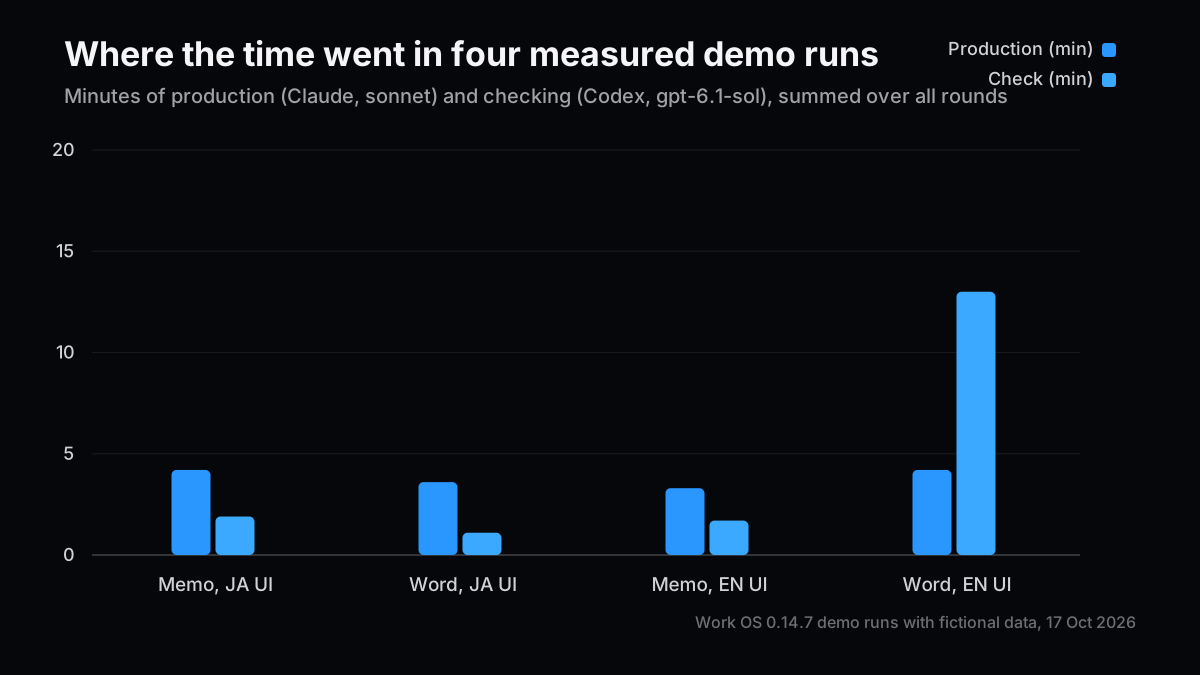
人の操作の回数には、スキルのインストール(初回だけの4回)を含めていない。費用は Claude Code が報告した額で、検査を担当した Codex はサブスクリプションで動くため費用が記録されない。英語UIのWord資料では、最初の検査だけで13分かかった。原因はまだ追えていない。
ここで正直に書いておきたい。調査メモ1本だけなら、手で書いた方が速い。慣れたテーマなら30分かからないし、Work OS が5分前後で返してきても、それを読んで判断する時間は私の側に残る。検査が13分かかった回もある。しかも1本目は検査を通らなかった。速さだけを比べるなら、この仕組みを作る意味は薄い。
いま Work OS に任せているのは、公開情報の調査メモ、会議の準備と議事録、Word と PowerPoint の資料の下書き、朝と週次のブリーフだ。実運用のローカルログでは、成功した実行が22回、1回あたりの所要時間の中央値は約2分、Claude側の費用は累計17.24ドルだった。回数はまだ少なく、効果を数字で語るには早い。
Handing a Solo VC Workflow to AI Agents: The Purpose, Features and Use of My Desktop App, Work OS
Version note: This covers Work OS 0.14.7 (release candidate, Windows only) as of 17 October 2026. I built it for my own work and do not distribute it publicly. Agents run through the Claude Code, Codex and Antigravity CLIs as of the same date. It has nothing to do with any other service of the same name. Every video and measurement here was recorded with fictional demo data.
Back in May, in my post on running AI agents as an organization, I described running 12 subagents as an "organization" for a one-person company. The lesson I leaned on hardest was that an AI organization breaks quietly. Five months on, I have rebuilt that system into the tool I use for my own work every day. That tool is Work OS.
The trigger was mundane. The first half hour of every morning went into finding out what I actually had to decide that day. Mail, calendar and meeting to-dos lived in different places, and every morning I sorted them from scratch into what I had to decide myself and what I could hand off.
What building it taught me is that the missing piece was never how clever the AI was. It was where the work lived.
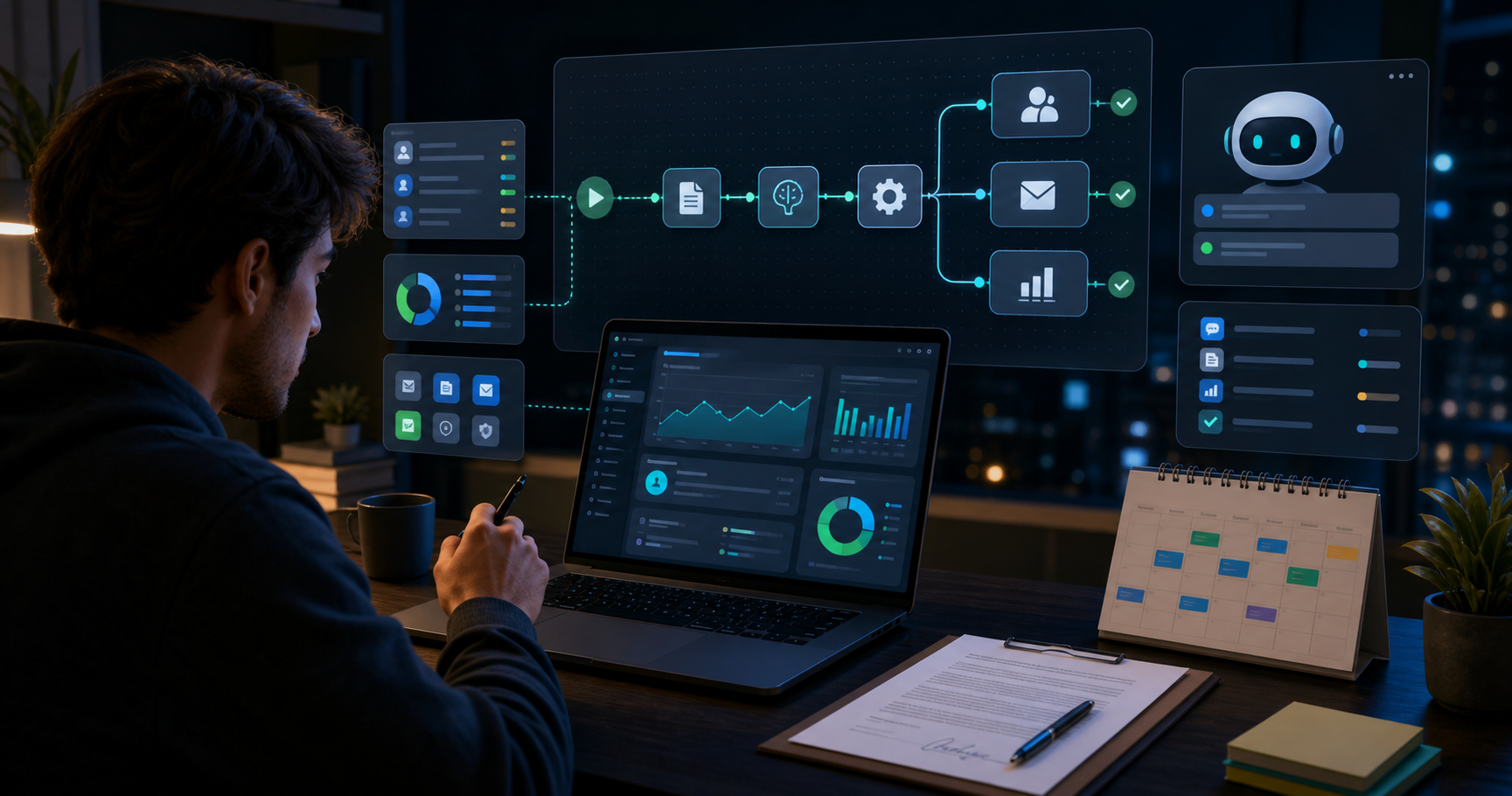
The purpose of Work OS fits in one sentence. Sort out what needs deciding today, turn mail, calendar and meeting to-dos into tasks, hand them to AI, and receive output that has been checked.
A chat assistant can do this once. But a conversation scrolls away when it ends. Nothing records who asked for what, which material was used, or who checked the result. The next time a similar job comes along, you explain the context all over again. That is why the concept I wrote down for it reads "keep it as operations, not as chat."
The design choice I cared about most was separating the person who makes a thing from the person who checks it. When I joined an investment team, the quality bar for evaluations varied from person to person, and it took three months to standardize it. What stuck with me was that quality does not come from individual effort; it holds only once checking is built into the process itself. In Work OS, a separate run inspects every deliverable read-only, apart from the agent that produced it. I turned that lesson directly into code.
The shape of the app changed too. In May it was a web app on Next.js, Neon and Vercel. In July I rebuilt it on Electron with a local SQLite database. It handles personal data like mail and calendars, so I wanted that data on my own machine. Keeping each user's data separated in the cloud was too heavy a setup for a tool used by one person.
I also decided what it would not do: no deal or portfolio management, no team sharing, no automatic rescheduling, no public API. There is a separate paid web edition as well, but I have not finished verifying sign-up through payment, so it stays out of this post.
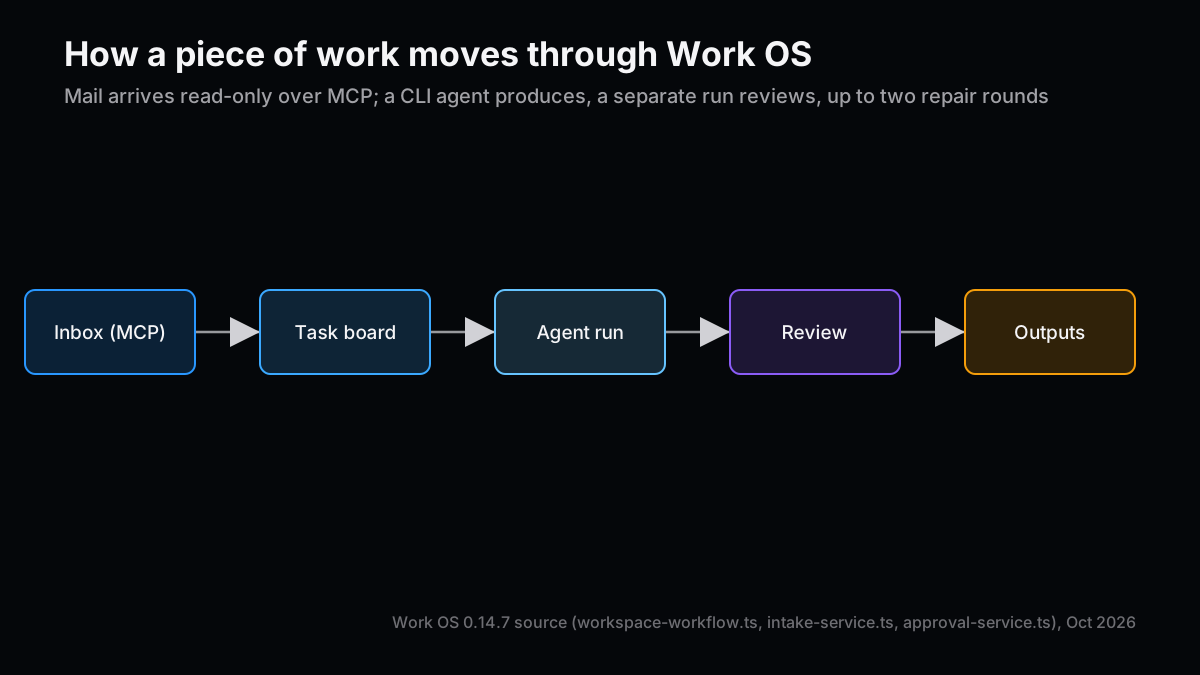
Here first is how one piece of work moves through the app.
Mail and calendar come in read-only over MCP (Model Context Protocol). Whatever I decide to delegate in the inbox becomes a task; an agent produces the deliverable and a separate run checks it. Only what passes shows up on the Outputs screen. Anything that leaves the machine, such as sending mail, changing the calendar or sharing a file, always stops in an approval queue.
Set beside a chat assistant and an ordinary task app, the differences look like this.
Aspect
Work OS
Chat assistant
Typical task app
Where work enters
Mail, calendar and meeting to-dos become candidates
You paste it in
You enter it
Who does it
The assigned agent, through a CLI
The AI in the chat
You
Quality check
A separate read-only run, up to two repair rounds
You read it
You read it
Where output lives
A working folder per task (Word, PDF, Markdown)
Inside the conversation
Attachments
Outbound actions
Nothing runs until approved in the queue
Depends on the tool
Not applicable
Where data lives
Your own PC (SQLite)
The vendor's cloud
The vendor's cloud
The row that matters most, to me, is the quality check. Whether someone other than you does it decides how much work you can actually hand over.
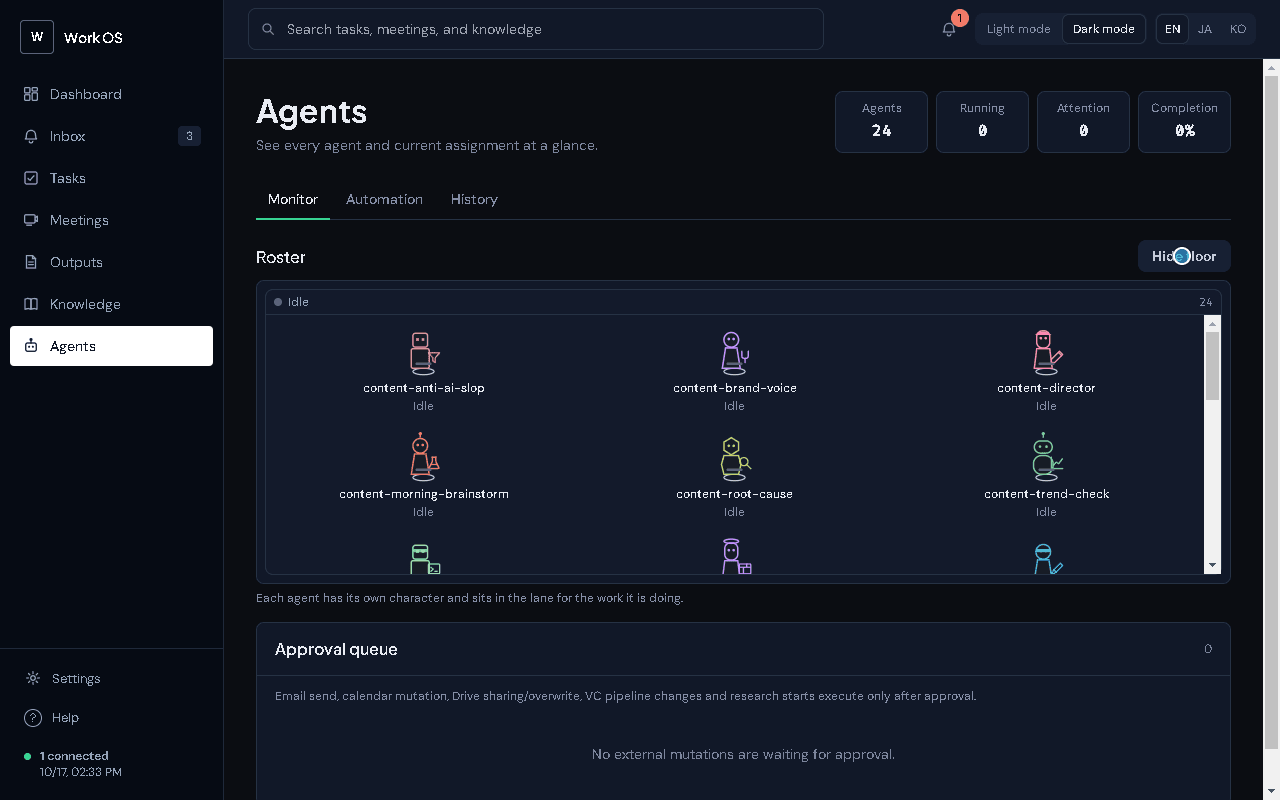
The roster grew from 12 subagents in May to 24. I wanted to narrow the tools and instructions each agent gets to one kind of work.
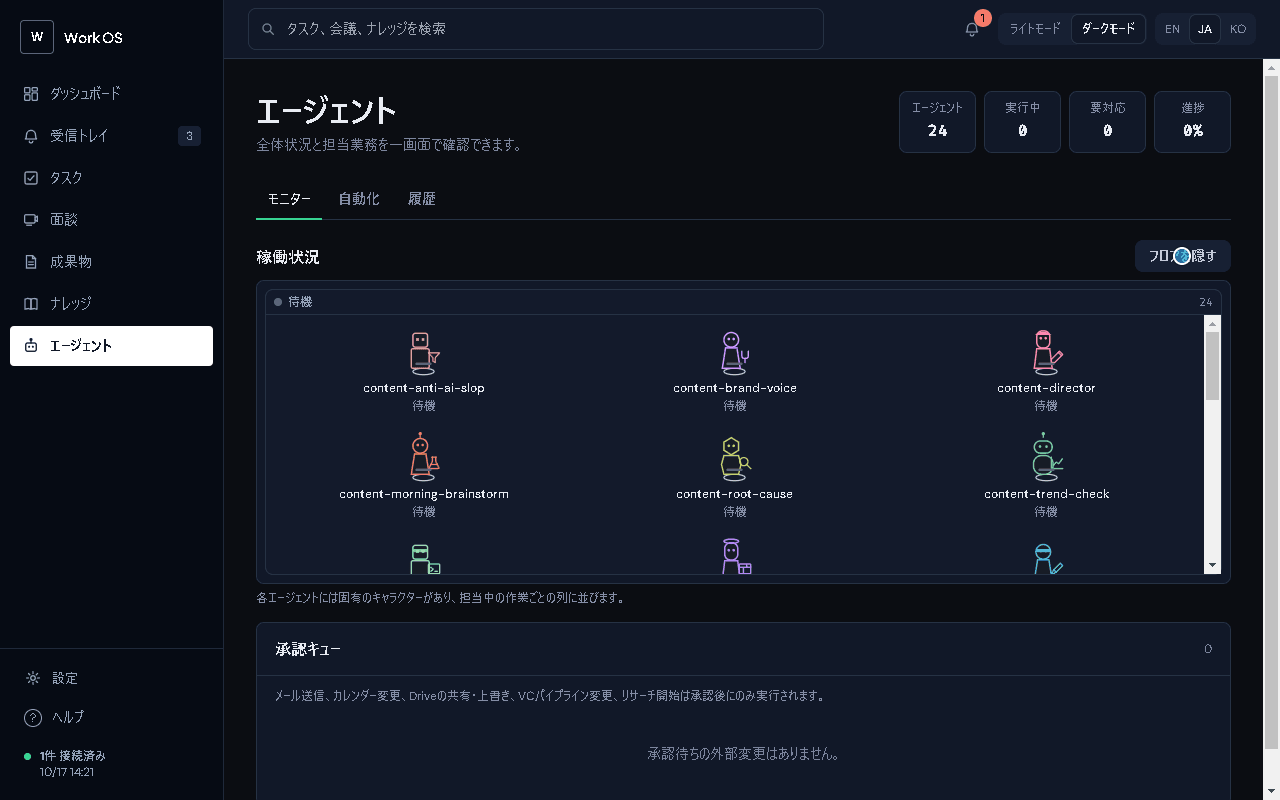
There are six in content (articles and documents), five in engineering, five in infra (inbox triage and scheduled jobs) and eight in investment (research and documents), plus one slot for the human operator. On the Agents screen, each one stands on a floor as a small character.
Each agent is one file, .claude/agents/<name>.md. The frontmatter sets the model, tools, skills, reasoning effort and maximum turns, and the body is the system prompt. Here is an excerpt from the research agent.
---
name: investment-market-research
description: Use to research a market, a competitive landscape, comparable financings, or a trend behind an investment question. ...
model: sonnet
tools: [Read, Write, Glob, Grep, WebSearch, WebFetch, mcp__claude_ai_Gmail__search_threads, ...]
effort: high
maxTurns: 20
skills: [handoff]
---
The app itself ships no AI SDK. It launches the Claude Code, Codex or Antigravity CLI you are already logged into as a child process and streams the output onto the screen. Simplified, a Claude Code launch looks like this.
claude -p --output-format stream-json --verbose --include-partial-messages \
  --tools "Read,Write,Glob,Grep,WebSearch,WebFetch" --strict-mcp-config \
  --add-dir "<knowledge folder>" --add-dir "<task working folder>" \
  --model "<model id>" --effort high --allowedTools "Read,Write,Glob,Grep"
There are four ways to start an agent: the Run agent button on a task, a per-task chat, delegating from the inbox, and an opt-in rule that assigns unowned tasks automatically.
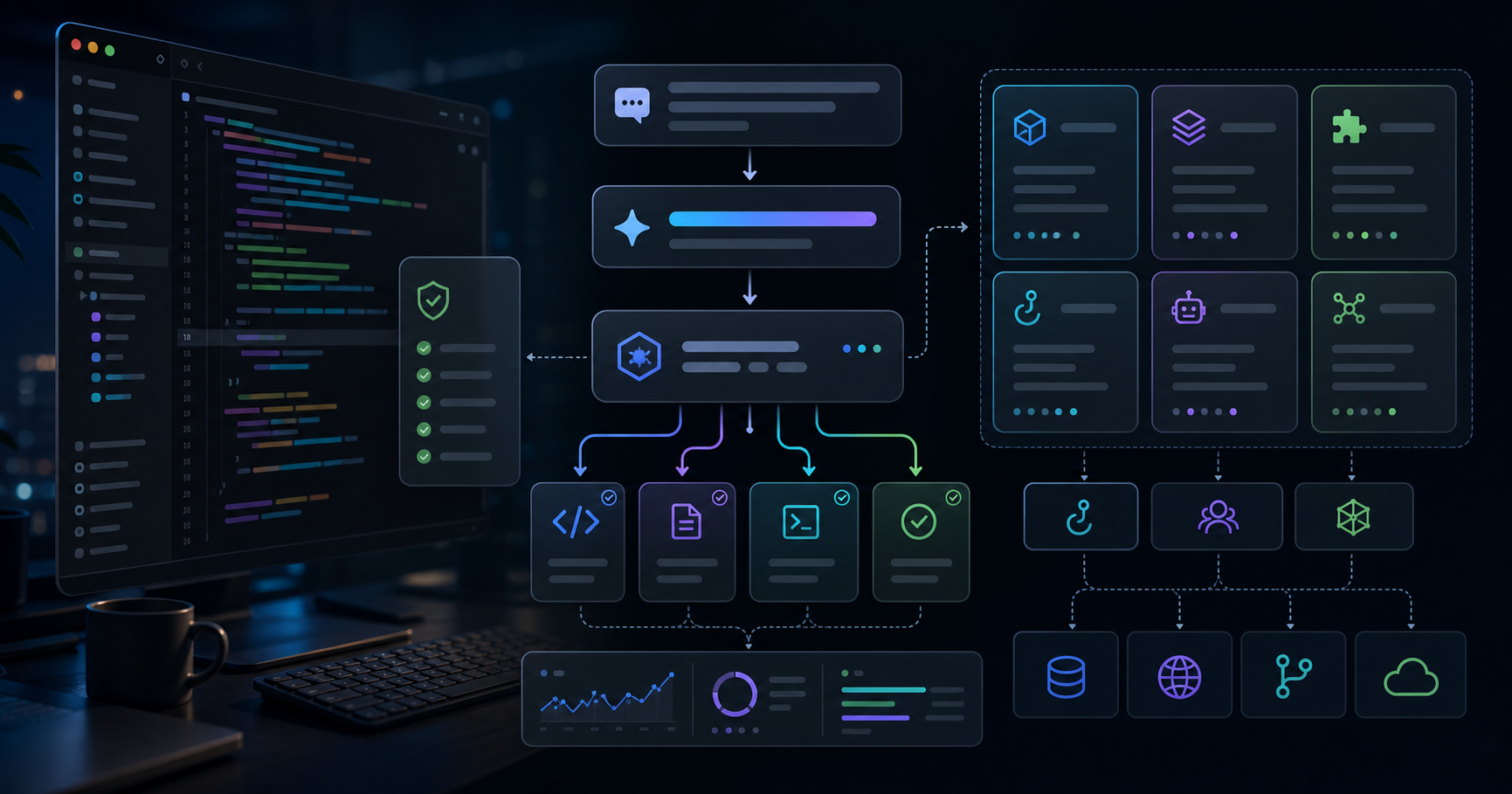
At the center is a produce, check, repair loop. The producing agent writes the deliverable, then a separate run inspects it read-only. A failure goes back to the producer with findings, for at most two repair rounds. Each step is retried up to three times, and no more than three steps run at once.
What I found interesting while recording the demo was that two different models did the work. Claude (sonnet) produced, and Codex (gpt-6.1-sol) checked. Having a different family of model check the work, rather than letting one model grade its own, seems to shift which kinds of mistakes get missed. That is how it looks to me so far, anyway.
Beyond that there are agent-to-agent handoffs (with my approval in between by default), a routing memory that remembers when I re-run a task with a different agent, and scheduled routines: a 7:00 brainstorm, a 7:30 article digest and a Monday weekly brief. Whatever agent it comes from, sending mail, changing the calendar or sharing a file stops in the approval queue.
If agents decide who does the work, Skills decide how it gets done.
A skill is a folder containing a SKILL.md, in the same format as Claude's Agent Skills. Ten ship with the app (decision records, handoff notes, a weekly brief, a nightly QA pass and others), and outside skills can be installed in batches as .skill or .zip files. You get a preview of the contents before anything is written to disk.
The demo skill in the video contains nothing more than this.
---
name: public-research-memo-word
description: Turn a public-information research request into a short comparison memo saved as Word (.docx), with a source and a date on every claim.
description-ja: 公開情報だけを使った調査依頼を、出典と日付付きの短い比較メモにまとめ、Word (.docx) で保存する。
version: 1.0.0
---

# Public research memo (Word)

1. Restate the question in one sentence.
2. Use public sources only. Every row or claim carries a source URL and the date it was checked.
3. Put the comparison in one table first, then at most five short findings.
4. Keep facts and inference under separate headings.
5. Two A4 pages at most.
Because the description says "Word (.docx)", any task this skill is attached to produces a Word file automatically. Letting the skill decide the format arrived in 0.14.2 on 10 October.
The mechanics around skills are summarized below.
Mechanism
What it does
Why
Assignment
Per agent or per task; skills:none turns them off
One agent can work to a different shape per job
Inlined into prompt
The body is passed directly rather than discovered by the CLI; 32 KiB budget
Every CLI receives the same instructions
Output format
Word, Excel or PowerPoint is detected from the description or code
No forgotten format settings
Script approval
Bundled Python runs only after approval tied to the folder's SHA-256
A changed skill must be approved again
Format check
The generated Word file is inspected and the result recorded
Fewer "it looked broken when I opened it" moments
Writing my own skills taught me that the good ones are short. The demo skill above has five steps. Long instructions run into the 32 KiB budget, and they also blur what the checking run is supposed to check against.
That covers the AI side. The rest is about catching the work as it comes in.
Inbox: pulls in Gmail, Outlook mail and calendar, Google Calendar, Google Drive and meeting to-dos every 15 minutes and lists the last three days without duplicates. Each candidate is delegated, attached to an existing task, deferred until tomorrow, or dismissed
Tasks: list and kanban views. Rows get a red frame when the deadline is under two days away, blue while an agent is running, and yellow when they are waiting for review
Meetings: recording continues while you move to other screens, with batch and live transcription through whisper.cpp, scene-by-scene summaries, to-do extraction and Word export
Outputs: Markdown and PDF render inside the app, where you either approve and finish or request a revision
Knowledge: reads an Obsidian-compatible folder as-is
Everything else: Windows notifications for deadlines, an attention bell, Japanese, English and Korean UI, and light and dark themes
On a Windows PC, install and log into at least one of the Claude Code, Codex or Antigravity CLIs. The first-run guide asks for an output folder and a knowledge folder, and Google connectors use an OAuth client you create yourself. Settings live in config.json in the user-data folder. These are the main settings used for the demo recording.
The imported mail shows up under "Needs your judgment" on the dashboard. In the inbox I pick one message, set the work template to Research memo and press Delegate this work. That is four actions on my side; a task is created and the assigned agent starts.
Video 1: A look at the dashboard and the Agents screen, then delegating a research memo from an inbox message (real time, about 20 seconds).
The task's History & chat tab streams the progress of production and checking. In this run the reviewer flagged, among other things, that an earlier efficiency record had been misstated as 34.85%, and that the summary presented planned supply as established fact. After two repair rounds it still had not passed, so the task stopped as Blocked with a yellow frame, waiting for me to decide.
Video 2: Three rounds of production and independent checks; the task that never passed is blocked (waiting time at 16x, about 33 seconds).
To be honest, before recording I had pictured a run that passed. But refusing to pass work that is not good enough is exactly what this mechanism is for, so I kept the take as it was.
In the Skills section of Settings, choosing a .skill file opens a preview of its contents. After installing it, I tick the skill under the task's Request & source tab, and the output format switches to Word. Then I press Run agent and wait. In this run the first check alone took about 13 minutes; the document passed on the second round, and a .docx appeared on the Outputs screen.
Video 3: Installing a skill, assigning it to a task, and receiving and approving the Word deliverable (waiting time at 64x, about 62 seconds).
On the Outputs screen, files that passed the check carry a "check passed" badge. I read them and either press Approve and finish, or write revision instructions and press Request revision. Work that needs a reply sent or a file shared waits in the approval queue on the Agents screen and goes nowhere until I approve it.
First, the measured numbers from the demo. I recorded once with the Japanese UI and once with the English UI, so the same two jobs each ran twice.
Run
Job
Human actions
Time (production + check)
Repairs
Result
Claude spend
Japanese UI
Research memo (from inbox)
4
6:03 (4:12 + 1:51)
2
Blocked, never passed
$0.72
Japanese UI
Word document (with a skill)
5
4:39 (3:34 + 1:05)
2
Passed on round 3
$0.93
English UI
Research memo (from inbox)
4
5:00 (3:20 + 1:40)
2
Blocked, never passed
$0.59
English UI
Word document (with a skill)
5
17:10 (4:10 + 13:00)
1
Passed on round 2
$0.67
Human actions leave out installing the skill (four actions, once only). Spend is what Claude Code reported; the checking runs used Codex on a subscription, which records no cost. In the English-UI Word run, the first check alone took 13 minutes, and I have not yet tracked down why.
I want to be honest here. For a single research memo, writing it by hand is faster. On a familiar topic it takes me under 30 minutes, and even when Work OS hands something back in about five minutes, reading it and deciding still falls to me. One check took 13 minutes on its own. On top of that, the first memo failed its check. If speed were the only measure, building this would hardly be worth it.
Where it helped was the morning. Triage of mail, calendar and to-dos went from about 30 minutes to about 10 by feel (I have not measured it properly). The reason is clear: what is waiting on my decision is now visible. The "Needs your judgment" panel on the dashboard and the red, blue and yellow task frames tell me exactly what needs my hands this morning. When the first demo memo got blocked, the yellow frame was the thing telling me "this one is yours to decide."
What I hand to Work OS today is public-information research memos, meeting preparation and minutes, first drafts of Word and PowerPoint documents, and the morning and weekly briefs. In my real local logs there have been 22 successful runs, a median of about two minutes per run, and 17.24 dollars of Claude spend in total. That is still too few runs to talk about the effect in numbers.
It is also clear who this setup is not for: people who want a team to work the same queue (there is no sharing), Mac users, anyone who does not want to install an AI CLI, and anyone who mainly wants a deal-management CRM. If all you want is faster one-off research, a chat assistant is enough.
I hit "it breaks quietly" myself: on 7 July the scheduled routines failed 242 times in a single day, and another 36 times on 11 July, while the screen looked perfectly normal. I repeated the exact lesson from post #15. Failures now surface on the dashboard and the attention bell, and 0.14.7 adds agent and skill diagnostics
Native Windows dialogs froze typing: after closing a confirmation dialog, the keyboard stopped working. 0.13.7 replaced every one with an in-app dialog
The 32 KiB skill budget: when assigned skills are too large, they are passed by reference or dropped with a warning. Miss the warning and it looks as if the skill simply is not working
Differences between CLIs: runs through Antigravity get no MCP. On Codex and Antigravity, keeping reference folders read-only is only an instruction in the prompt; unlike Claude Code, the tools themselves cannot enforce it
The development build could see the whole repository: I noticed while preparing the recording that in a development build the agents were given the entire repository and its settings file. Installed builds do not do this, and I matched installed-build conditions for the recording
An unsigned installer: Windows shows a warning. Since the app is for me, this is on the back burner
In my ValuScope usage post I argued that the effect of agents should be measured by decision quality rather than automation rate. After using Work OS every day, I want to add one thing in front of that: before the quality of a decision, are the things you need to decide actually in front of you?
Separate the maker from the checker, stop what does not pass, and show what has stopped in color. None of it is glamorous, and almost none of it makes the AI faster. Even so, I got 20 minutes of my morning back. I am not yet sure this is the best structure, but at least it has moved "an AI organization breaks quietly" toward not letting it break in silence.
Idea 1: What does an independent check by a different model catch? — Run a few dozen tasks with Claude producing and Codex checking, and count the kinds of findings and misses.
Idea 2: Writing short SKILL.md files — Compare real skills to find a good length and structure, given the 32 KiB budget and how easy the result is to check.
Idea 3: Recording desktop app demos automatically with Playwright — How the recording harness behind this post works: fictional data, a visible cursor and sped-up editing.
This article is for informational purposes only and does not recommend any security, service or investment action. It was written with the help of generative AI and checked against the source code and the demo run records. See the disclaimer for details.